
How to Download Kuaishou (Kwai) Videos on iPhone & iPad (The Easy Way)
So, you’ve found an amazing video on the Kuaishou (Kwai) app on your iPhone and you want to save it to your camera roll. You try to save it, but you either can’t find the option, or you end up with a video that has a distracting watermark. It’s a common and frustrating problem for iOS users.
Unlike Android, iPhones have a more closed ecosystem, which can make saving files from the internet seem complicated. But don’t worry, there is a very simple and safe solution that doesn’t require jailbreaking your phone or installing any risky apps.
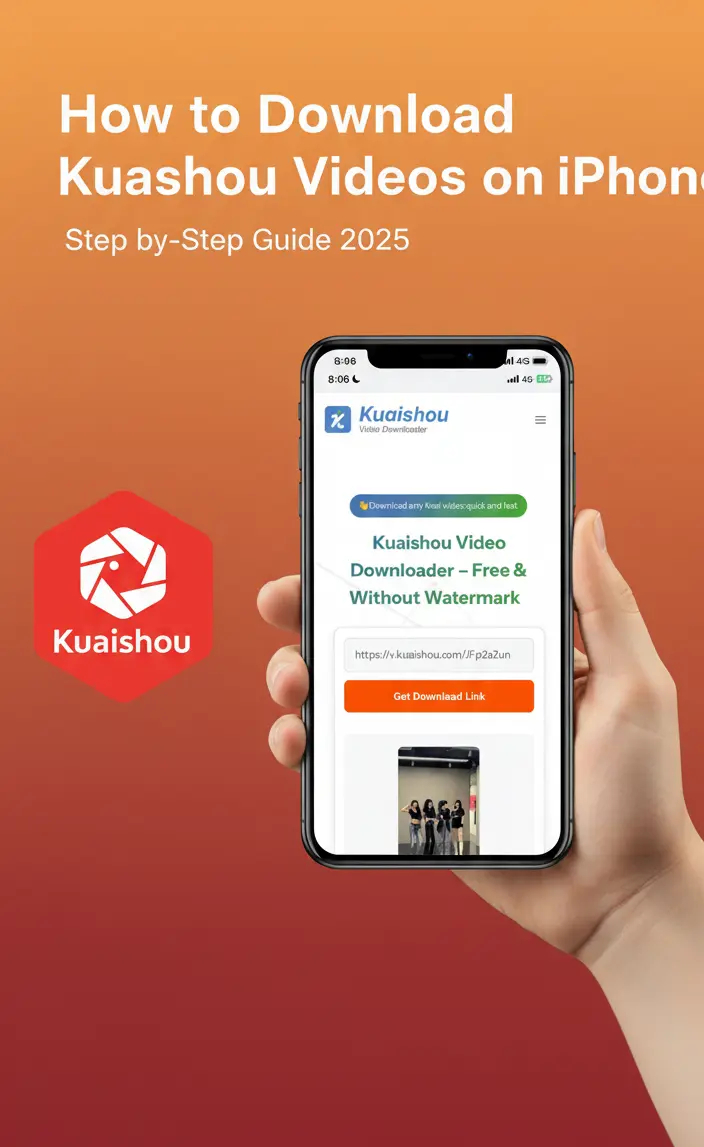
In this definitive guide, we will walk you through the exact step-by-step process of how to Download Kuaishou Videos on iPhone or iPad, in full HD quality, and completely without a watermark.
Why Is It Different to Download Videos on an iPhone?
Before we fix the problem, it helps to understand it. Why can your friend with an Android phone just click “download” and be done with it, while you are jumping through hoops?
It comes down to how Apple manages file security. On a computer or an Android phone, you have a readily accessible file system. When you download something, it goes into a general “Downloads” folder that any app (like your gallery) can see.
On an iPhone, every app lives in its own secure “sandbox.” The Safari browser cannot just arbitrarily place a video file into your Photos app without your explicit permission and a specific sequence of actions.
For years, this made downloading videos nearly impossible. However, with recent updates to iOS and the introduction of the “Files” app, Apple has given us a bridge. It’s just a bridge that most people don’t know how to cross. This guide is your map.
The Best Method: Using a Free Online Downloader in Safari
The safest, fastest, and most reliable way to save Kwai videos on an iPhone is to use a dedicated online tool. These services work directly in your Safari browser and are designed to handle the process for you. This method avoids the need to search the App Store for a potentially low-quality or subscription-based kuaishou video downloader app.
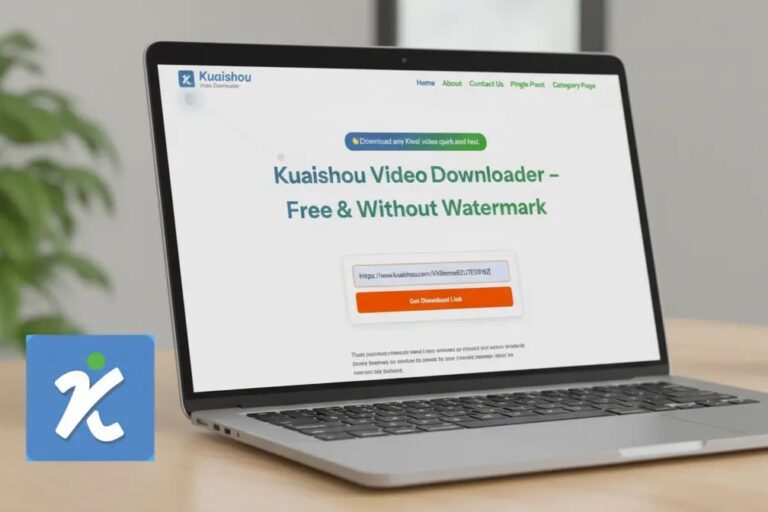
Our free Kuaishou Video Downloader is optimized to work perfectly with iPhone and Safari or even chrome.
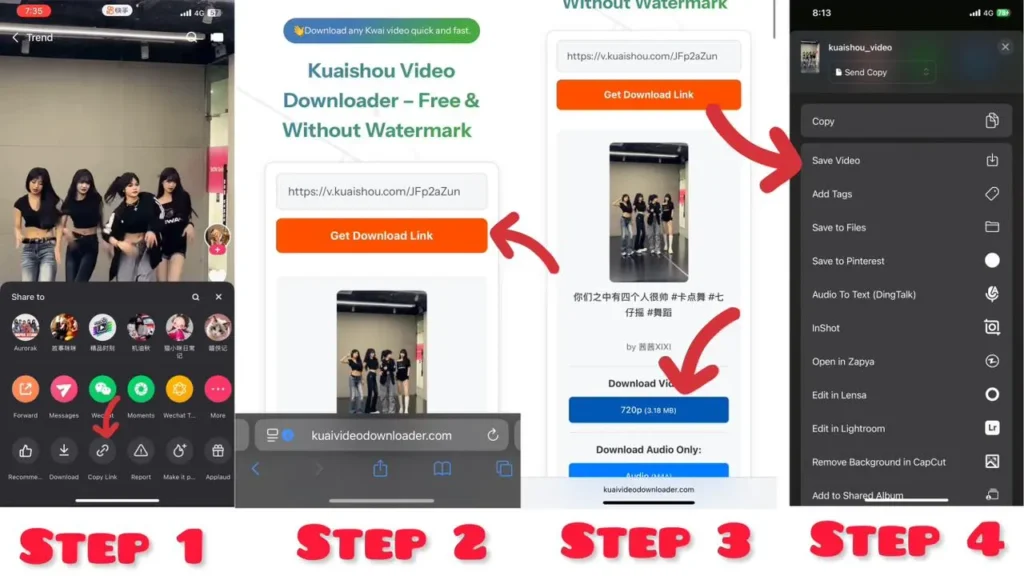
The Complete Step-by-Step Guide for iPhone & iPad Users
Follow these steps precisely, and you will have the video in your camera roll in under two minutes. This method works for all modern iPhones (from iPhone X to the latest models) and all iPads running recent versions of iPadOS.
Phase 1: Getting the Source Link
First, we need to get the exact address of the video from the Kuaishou app.
- Open the Kuaishou (Kwai) app on your iPhone.
- Navigate to the video you want to save.
- Tap the “Share” icon (usually an arrow pointing right or a WhatsApp icon, depending on your region).
- In the menu that pops up from the bottom, look for and tap the “Copy Link” icon (it looks like two chain links connected). The link is now saved to your phone’s invisible clipboard.
Phase 2: The Safari Download Process
Now we move to the browser to process that link into a downloadable file.
- Exit the Kuaishou app and open your Safari browser. (Note: While this may work in Chrome for iOS, Safari is the most reliable for file handling on iPhone).
- Navigate to our mobile-optimized tool: Kuaishou Video Downloader.
- Tap once inside the large white input box on our homepage. A “Paste” option will appear. Tap “Paste” to insert the link you just copied.
- Tap the “Get Download Link” button.
- Our system will process the video. Scroll down to see the results. You will see options for different qualities (e.g., “HD 1080p,” “SD 720p”). Tap the blue “Download” button next to your highest desired quality.
Phase 3: The Crucial Safari Pop-up
This is where most people get confused. Pay close attention here.
After tapping the download button, Safari will present a small pop-up box in the center of the screen showing the filename (often a long string of numbers ending in .mp4). It will ask: “Do you want to download [filename]?”
You have two options: “View” and “Download.”
- DO NOT tap “View.” This will just play the video in a browser tab and won’t save it.
- YOU MUST tap “Download.”
Once you tap “Download,” look at the address bar at the top or bottom of Safari. You will see a small blue circle icon with a downward arrow. This indicates the file is actively saving to your device.
Phase 4: Moving from “Files” to “Photos” (The Final Step)
Your video is now on your iPhone, but it’s hidden in the “Files” app, not your “Photos” app. We need to move it.
- Minimize Safari. Go to your home screen and find the gray “Files” app icon (it looks like a blue file folder). If you can’t find it, swipe down on your home screen and search for “Files.”
- Open the Files app. Tap on the “Browse” tab at the bottom right.
- Navigate to “On My iPhone” and then tap on the “Downloads” folder.
- You will see your downloaded Kuaishou video there. Tap onto the video file to open it.
- With the video open, look for the “Share” icon in the bottom-left corner (a square with an arrow pointing up). Tap it.
- A menu will slide up. Scroll down past the list of contacts and apps until you see the option “Save Video.” Tap this.
Congratulations! You have successfully moved the file. You can now open your main Photos app, and the watermark-free, HD Kuaishou video will be in your “Recents” album, ready to share or edit.
Watch Our Video Tutorial
Watch a step-by-step guide? Here is a short video that walks you through the entire process of downloading a Kuaishou video on Iphone using our tool.
Pro Tips for iOS Power Users
Once you master the basics, these tips will speed up your workflow.
- Clean Your Downloads Folder: The “Files” app can fill up quickly with old video files. Once you have saved a video to your Photos app, it’s a good idea to go back into the Files app “Downloads” folder and delete the original file to save space on your iPhone.
- Use iCloud Drive for Backup: If you have iCloud enabled, you can set Safari to download files directly to your iCloud Drive instead of “On My iPhone.” This means your downloaded videos will instantly be accessible on your iPad or Mac as well. Go to Settings > Safari > Downloads to change this location.
Troubleshooting Common iPhone Download Problems
Even with a perfect guide, iOS can sometimes throw you a curveball. Here is how to fix common issues.
- “When I tap download, the video just plays in a new tab!”
- This happens if you tapped “View” instead of “Download,” or if Safari is glitched.
- The Fix: Go back, tap and hold (long press) on the blue download button on our website. A menu will pop up. Select “Download Linked File.” This forces Safari to trigger the download pop-up.
- “I can’t find the Files app!”
- It is a default Apple app, but you might have deleted it. Go to the App Store, search for “Files” by Apple, and redownload it for free.
- “The ‘Save Video’ option isn’t missing in the share menu.”
- Sometimes this option is hidden or buried. Scroll all the way to the bottom of the Share menu and tap “Edit Actions.” Make sure “Save Video” is toggled on and added to your favorites list for easy access next time.
Frequently Asked Questions for iPhone Users
Final Thoughts on How to Download Kuaishou Videos on iPhone
Downloading Kuaishou videos on an iPhone might seem tricky at first, but it’s incredibly simple once you know the steps. By using a reliable online tool, you can bypass the app’s restrictions and save any video you want, completely watermark-free.
This method gives you the freedom to build a personal collection of your favorite clips, create engaging content, and enjoy the best of Kwai without limitations. Ready to try it? Head over to our free Kuaishou video downloader and save your first video today!